|
Use these instructions to create a data source directly using the ODBC
Manager. This should be done only under abnormal conditions.
|
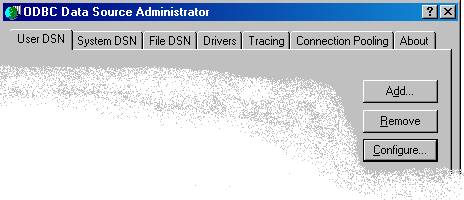
Press the Add button
|
1
|
|
|
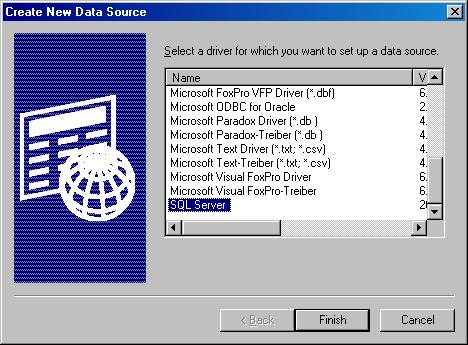
Select the SQL Server driver.
Press the Finish button.
|
2
|
|
|
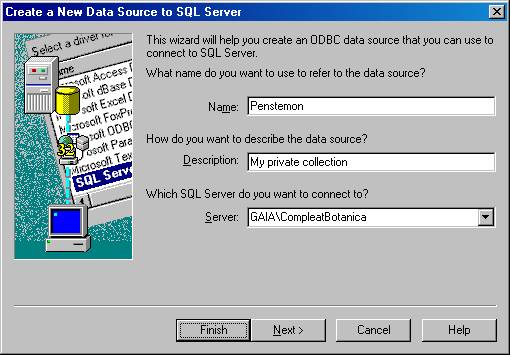
The Name is required.
The Description is optional.
Which SQL Server do you want to connect to? should be the SQL
Server Desktop Engine with a name ending in �\CompleatBotanica�(The prefix is
your computer name).
Press the Next button.
|
3
|
|
|
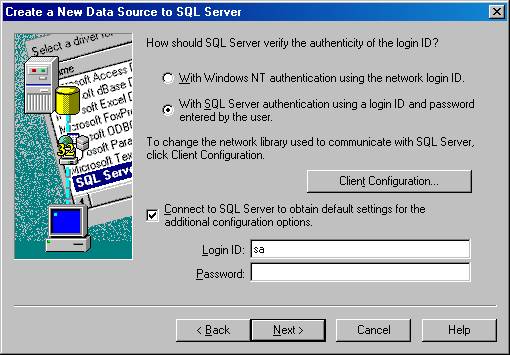
Click on the second button � �With SQL Server authentication using a
login ID and password entered by the user.�
Change the Login ID to �sa� (This is the System Administrator ID).
Do not supply a Password.
Press the Next button.
|
4
|
|
|
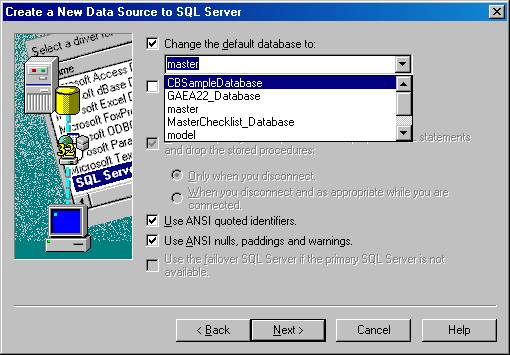
Check the box labeled: �Change
the default database to�
Use the drop-drop combo-box to select the existing database that you are
making this ODBC entry for.
Leave all other buttons on this screen at their default values.
Press the Next button.
|
5
|
|
|
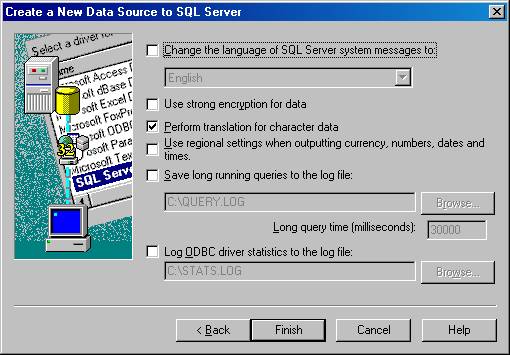
Leave all options on this screen as they are.
Press the Finish button.
|
6
|
|
|
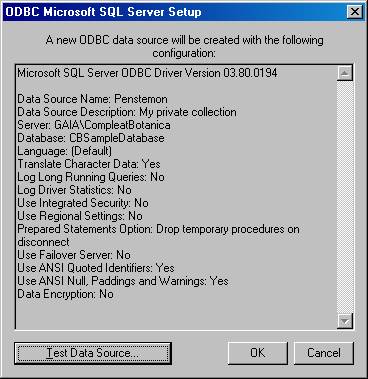
Press the Test Data Source button
|
7
|
|
|
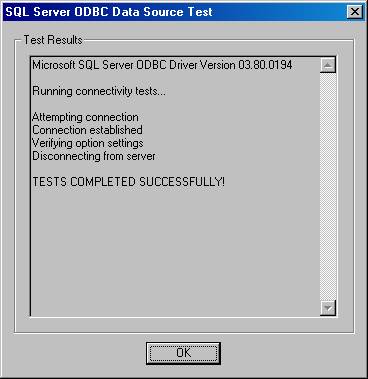
Verify that the �Tests Completed Successfully.�
Press the OK button.
..............................
|
8
|
|
|

 Troubleshooting the ODBC configuration


